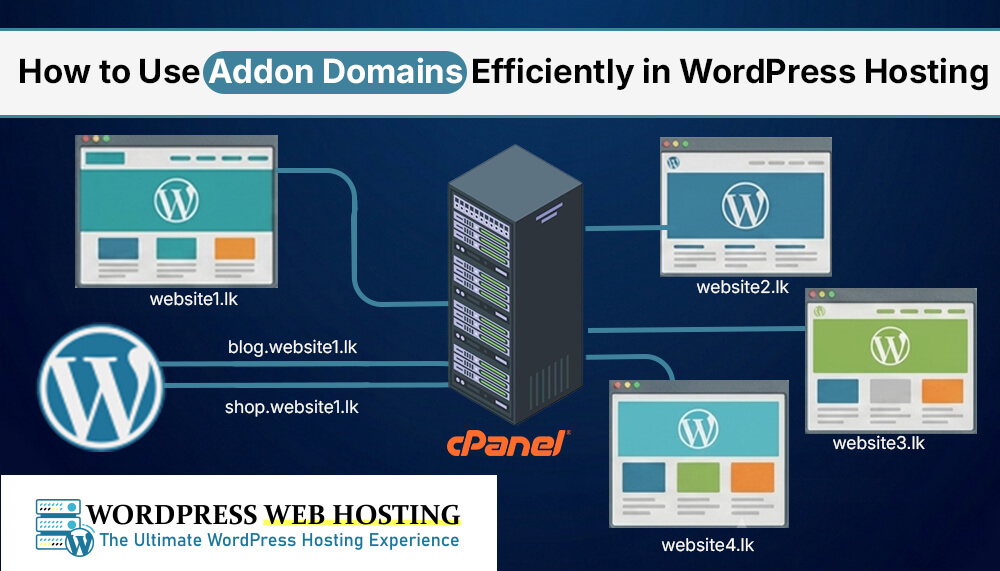
How to Use Addon Domains Efficiently in WordPress Hosting
If you have more than one WordPress website, you don't always need to buy a separate hosting account for each one. With WordPress Hosting , you can host multiple WordPress websites using Addon Domains. This is a simple and cost-effective solution for businesses, bloggers, web developers, and digital agencies in Sri Lanka. In this guide, you'll learn what an Addon Domain is, how it works, and how to install WordPress on an Addon Domain using cPanel.
What Is an Addon Domain?
An Addon Domain is an additional domain name that you can add to your hosting account. Each Addon Domain works like a separate website with its own files, WordPress installation, and content. For example:
- yourcompany.lk
- yourshop.lk
- yourblog.lk
All these websites can be managed from one hosting account.
What Is a Subdomain?
A subdomain is an extra prefix added to the front of a main domain name, such as blog.example.com, to create a separate and distinct section of a website. Examples include:
- blog.yourcompany.lk
- shop.yourcompany.lk
- support.yourcompany.lk
Subdomains are useful when you want to create separate sections of your website without buying another domain.
Addon Domain vs Subdomain
Many beginners get confused between these two.
Addon Domain
- Uses a completely different domain name
- Works as an independent website
- Has its own WordPress installation
Subdomain
- Uses your existing domain
- Becomes part of your main website
- Ideal for blogs, support portals, or test websites
Choose the option that best matches your website requirements.
Why Use Addon Domains?
Addon Domains make website management much easier. Benefits include:
- Host multiple websites
- Save hosting costs
- Manage everything from one cPanel
- Install separate WordPress websites
- Easy website management
This is ideal for businesses that own several websites.
How to Install WordPress on an Addon Domain
Installing WordPress is simple and does not require coding.
Step 1: Add the Addon Domain
Log in to your cPanel, Go to the Domains tool, click Create A New Domain , enter your domain name, uncheck Share document root, and click Submit. The system will automatically create a folder for your website.
Step 2: Open Softaculous
Go to the Softaculous WordPress Installer inside cPanel. Softaculous allows you to install WordPress with just a few clicks.
Step 3: Select Your Domain
Choose the Addon Domain you just added. Make sure you select the correct domain before starting the installation.
Step 4: Enter Website Details
Complete the required information:
- Website Name
- Website Description
- Admin Username
- Admin Password
- Admin Email
Choose a strong password to improve website security.
Step 5: Install WordPress
Click Install. Within a few minutes, your new WordPress website will be ready to use. No technical knowledge is required.
How to Install WordPress on a Subdomain
The process is very similar. First, create a subdomain in cPanel. Then open Softaculous and choose the new subdomain during the WordPress installation. This is useful for:
- Company blogs
- Knowledge bases
- Customer portals
- Development websites
- Testing environments
Manage WordPress Easily with WP Manager
Many hosting plans include WP Manager. WP Manager helps you:
- Manage multiple WordPress websites
- Update WordPress
- Change admin passwords
- Improve security
- Access the WordPress Dashboard quickly
It makes WordPress website management much easier.
Tips for Managing Multiple WordPress Websites
If you host several websites, follow these best practices:
- Keep WordPress updated
- Update plugins regularly
- Use strong passwords
- Install trusted themes
- Create regular backups
- Remove unused plugins
These simple steps help keep all your websites secure and running smoothly.
Why Choose WordPressWebHosting.lk ?
At WordPressWebHosting.lk, we provide reliable WordPress Hosting solutions for businesses and website owners across Sri Lanka. Our WordPress hosting includes:
- Easy cPanel access
- Softaculous WordPress Installer
- WP Manager
- Free SSL Certificates
- Daily backups
- Professional local support
- Fast and reliable hosting
Whether you're creating your first website or managing multiple WordPress sites, our hosting platform makes WordPress installation simple and hassle-free.
Final Thoughts
Using Addon Domains is one of the easiest ways to host multiple websites without purchasing separate hosting accounts. With cPanel, Softaculous, and WP Manager, you can install WordPress in just a few minutes and manage all your websites from one place. If you're looking for reliable WordPress Hosting in Sri Lanka , WordPressWebHosting.lk offers everything you need to build, manage, and grow your WordPress websites with confidence.